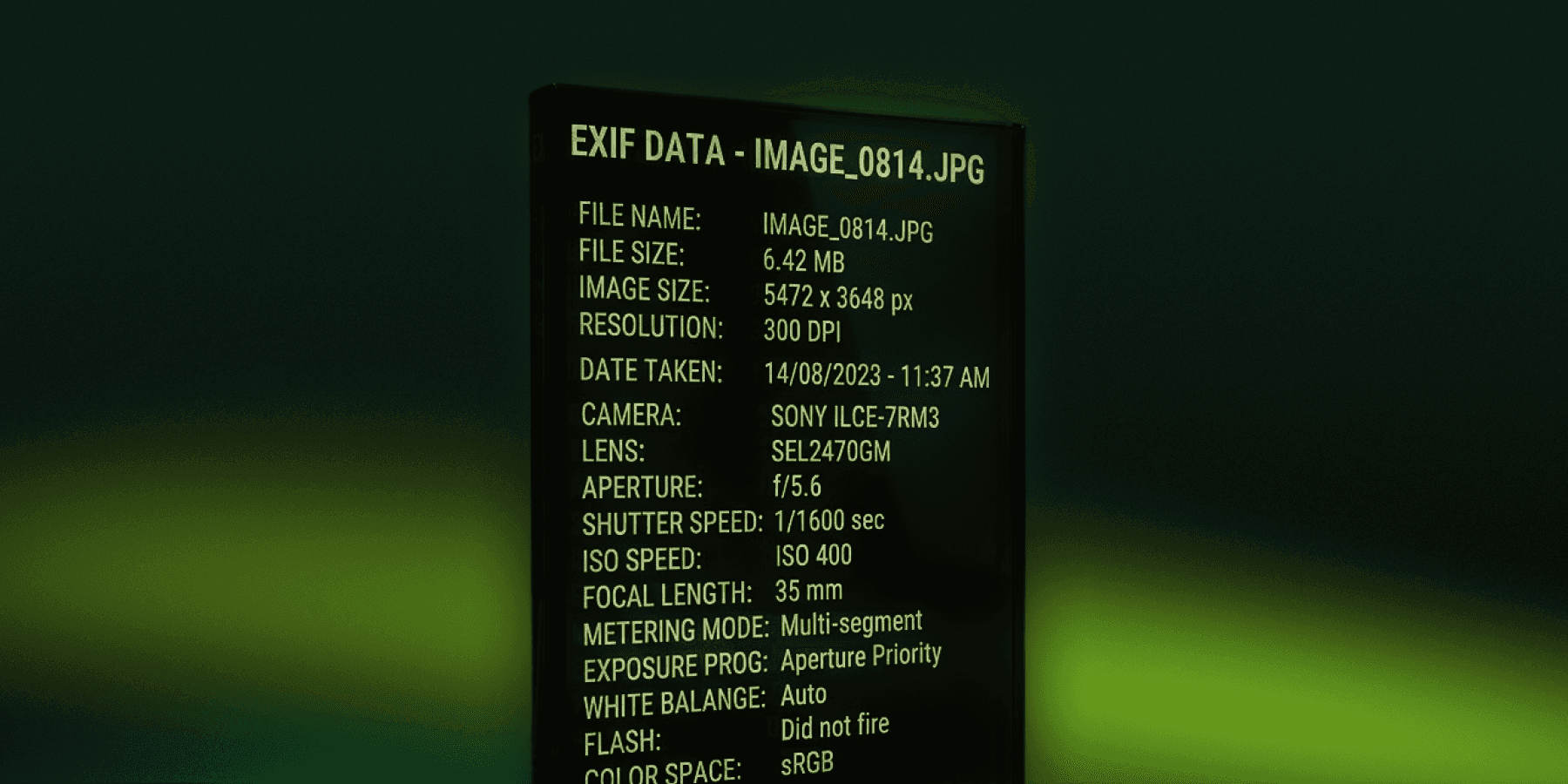
Every photo you take on your iPhone contains a secret passenger. You can't see it when you look at the image. You can't feel it when you share the photo. But it's there - a layer of invisible data embedded in the file that can tell a stranger your exact GPS coordinates, the device you used, the date and time, and more.
It's called EXIF data. And most people have never heard of it.
What Is EXIF Data?
EXIF stands for Exchangeable Image File Format. It's a standard that embeds metadata directly into image files. When your iPhone camera takes a photo, it automatically records a package of information and buries it in the file:
GPS coordinates - the exact latitude and longitude where the photo was taken (accurate to within a few meters)
Timestamp - date and time of capture
Device information - iPhone model, iOS version, camera settings
Altitude - how high above sea level you were
Direction - which compass direction the camera was pointing
This data is invisible when you view the photo. But it travels with the file everywhere it goes - text messages, email, social media (sometimes) and cloud storage.
Real-World Cases Where EXIF Data Caused Harm
This is not a theoretical risk. EXIF data has caused real harm in documented cases.
John McAfee, 2012. The tech entrepreneur was hiding from authorities in Guatemala. A journalist photographed him and uploaded the image to a website. The photo's EXIF data contained GPS coordinates pinpointing his exact location. Authorities used it to find and arrest him within hours.
Stalking cases. Multiple documented cases involve stalkers using EXIF data extracted from photos posted on social media or dating apps to track victims' home addresses and daily routines. Even when photos were posted without captions, the GPS coordinates were embedded in the file.
Abusers tracking survivors. Organizations working with domestic violence survivors have flagged EXIF data as a specific safety concern - a photo texted or shared online can reveal a shelter's location.
Does Social Media Strip EXIF Data?
This is where most people make a dangerous assumption. They assume platforms like Instagram or Twitter strip the metadata. Some do - and some don't, depending on the platform, the upload method, and changes in policy that happen without notice.
Direct text messages (iMessage, SMS, WhatsApp) generally preserve EXIF data. So does email. So does AirDrop. When you hand someone your phone or share a photo through a direct channel, all the embedded location data comes with it.
Even when platforms strip metadata on upload, the file has already been sent to their servers with full EXIF intact. The risk exists at the point of upload, not just at the point of viewing.
The Problem With Your Main Camera App
Your default iPhone camera records location data by default. This is turned on automatically when you grant the camera location permission - which most apps request for entirely reasonable purposes, like geotagging a memorable trip.
But that same system means that photos of your bedroom, your home office, your children's school, your doctor's office - all of these are tagged with GPS coordinates by default.
When those photos live in your main camera roll, they can be accessed by apps that have photo library permissions. Many apps request "full photo library" access for functions that don't remotely require it. Your photos - with their embedded location data - may be quietly read by more apps than you realize.
What a Privacy-First Camera App Does Differently
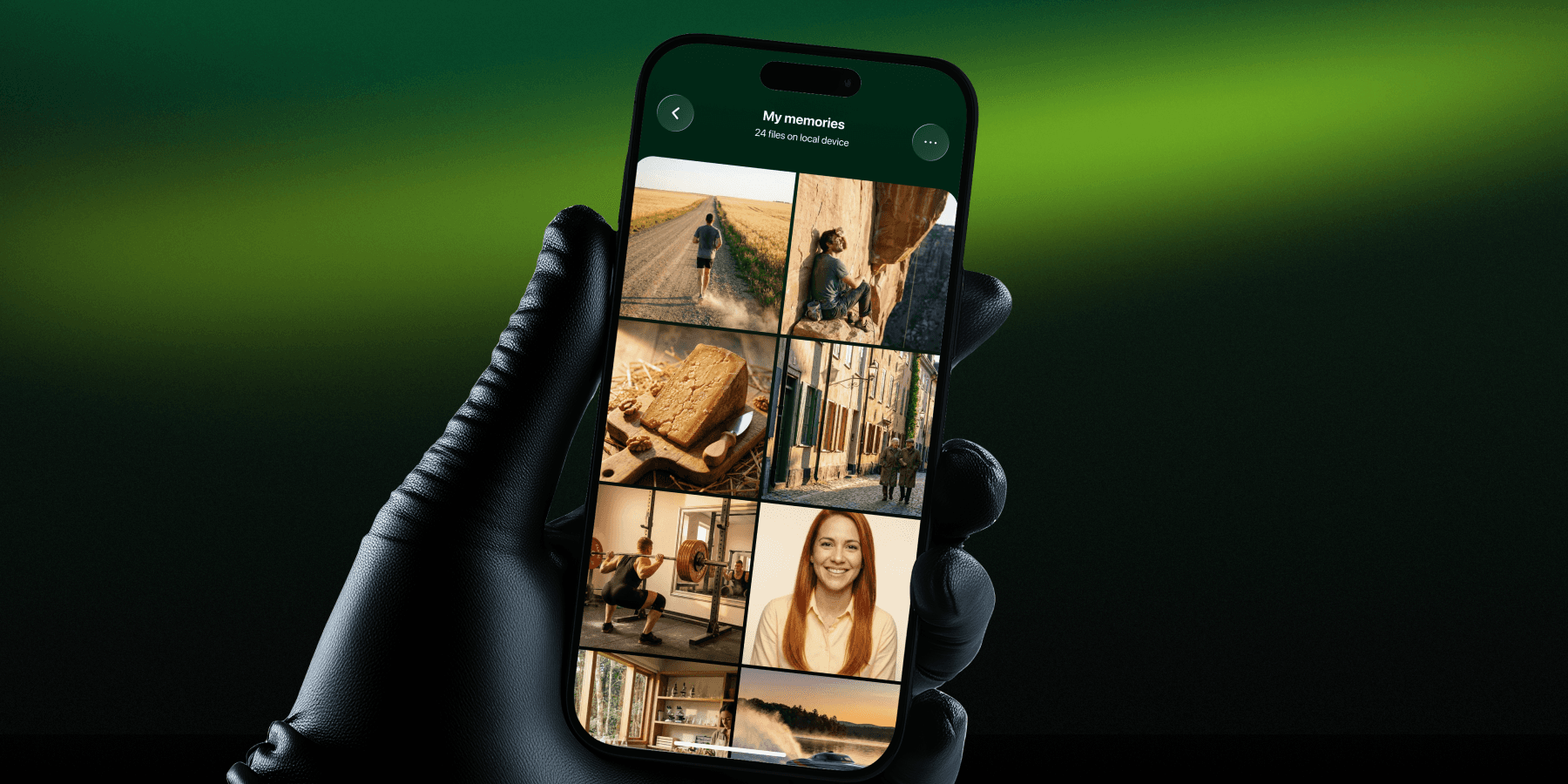
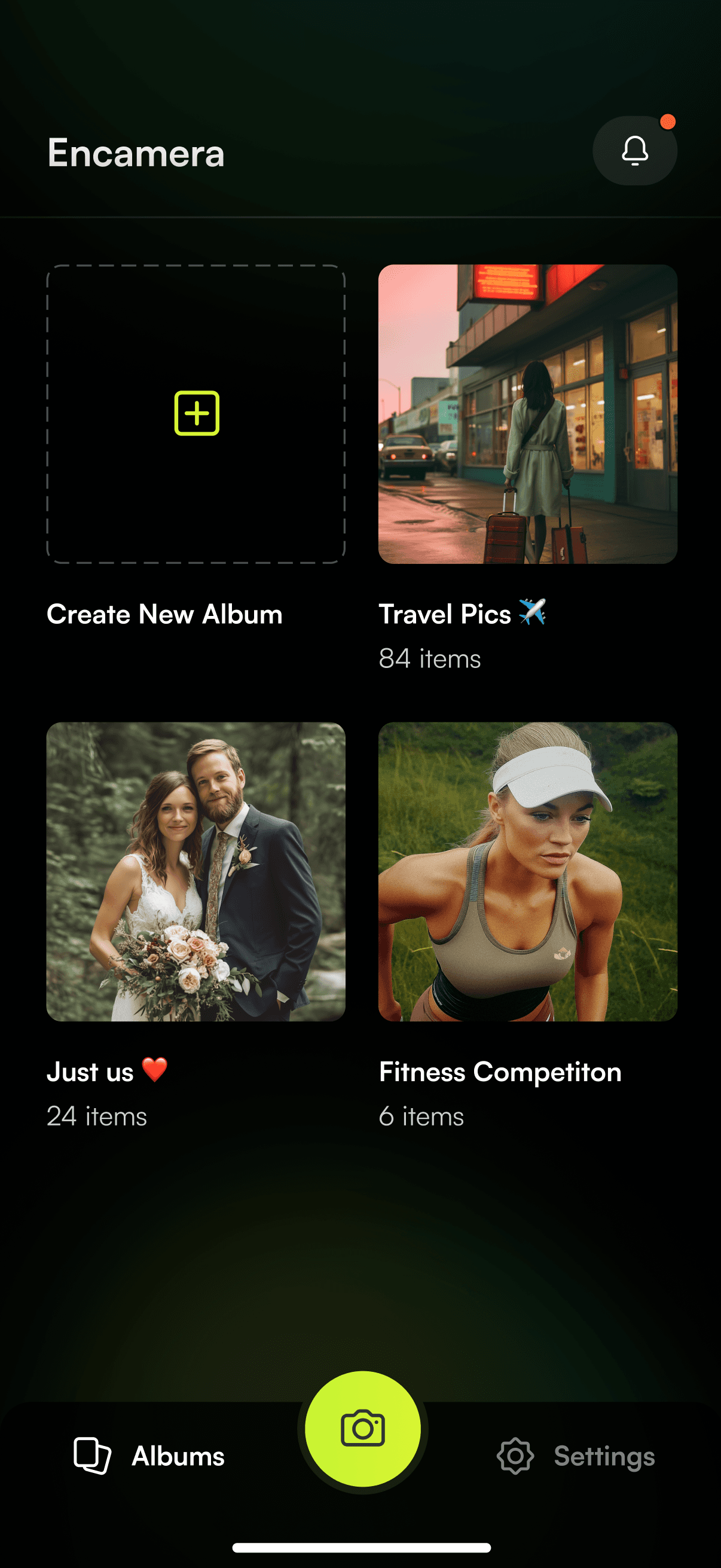
Encamera's built-in camera captures photos directly into an encrypted vault without writing to your main photo library. This means:
Photos captured in Encamera are never accessible to other apps
The encrypted files that are stored cannot be read without your key
You can configure location permission specifically for your Encamera usage
Beyond the vault: you should also audit your iPhone's camera location settings. Go to Settings > Privacy & Security > Location Services > Camera and consider setting it to "Never" or "Ask Next Time" if you don't want location embedded in most photos you take.
How to Check and Remove EXIF Data on iPhone
To view EXIF data: Open a photo in the Photos app, swipe up, and you'll see the location, date, camera settings, and file information.
To remove location before sharing: In the Photos app, tap Share, then "Options" at the top of the share sheet, and toggle off "Location." This removes the GPS data from that specific share action - but the data remains in the original file.
For full control: Use an app or workflow that strips metadata before photos leave your device.
The Bigger Picture
Photo privacy is not just about who can see your photos. It's about what your photos reveal without you knowing. EXIF data turns every image into a potential tracking beacon. A photo of your morning coffee in your kitchen, texted to a friend, carries your home's GPS coordinates with it.
Most people take dozens of photos a day without thinking about this. That metadata accumulates into a detailed map of everywhere you've been, what device you use, and when you're home.
Understanding this risk is the first step. Controlling it is the second.